Waycare: a filterable data table for an AI traffic platform
The incident log of Waycare's AI traffic management platform, used in smart city operations: from workflow mapping to a 16-page behavior specification and a pixel-perfect interface, plus the customer Help Center I designed in parallel.
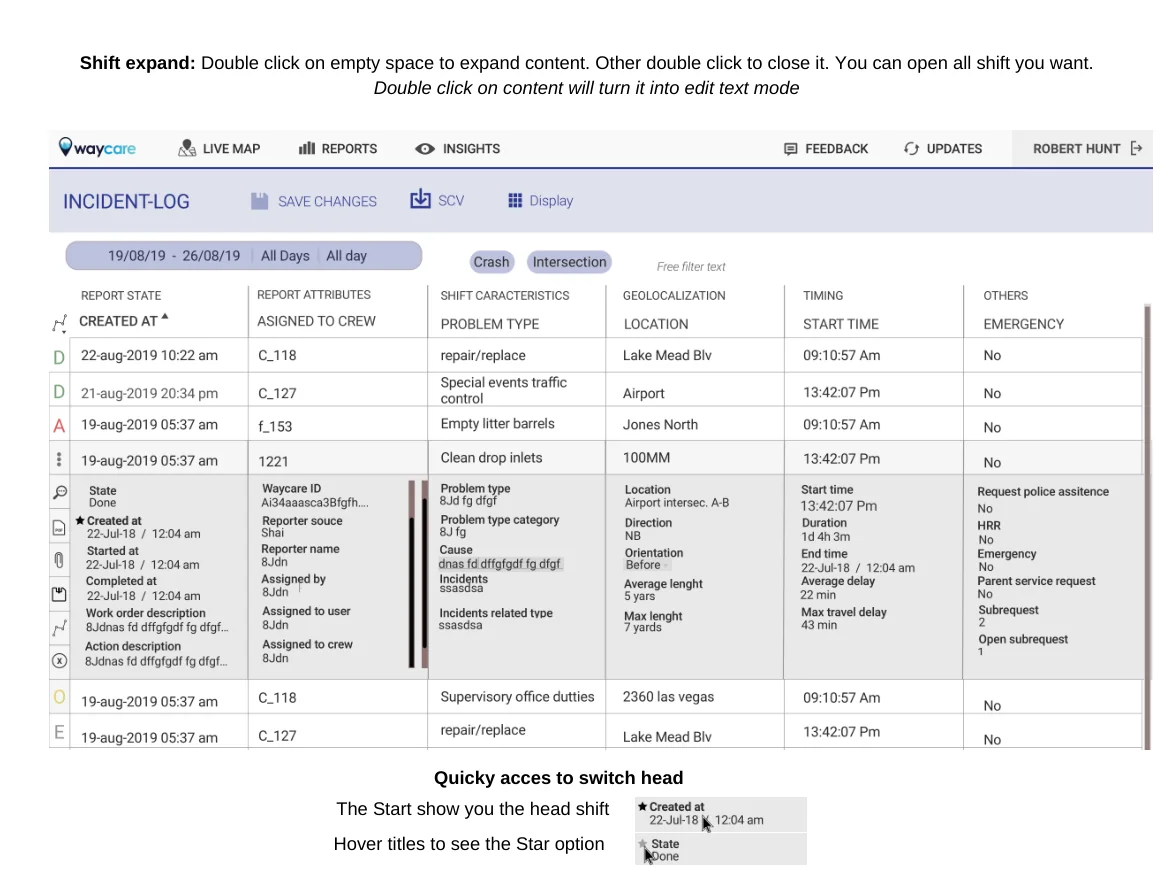
The table at the heart of the back office
Waycare's platform uses AI to manage traffic in smart city operations. Operators work on a live map, and behind it there is a back office where every incident and every shift is reviewed, filtered and updated. The incident log is a wide table, with many columns and a long history: that is where operators spend most of their time, and where there was the most to gain.
How do you give users dense data, flexible filtering and in-place editing without the screen looking like a spreadsheet?
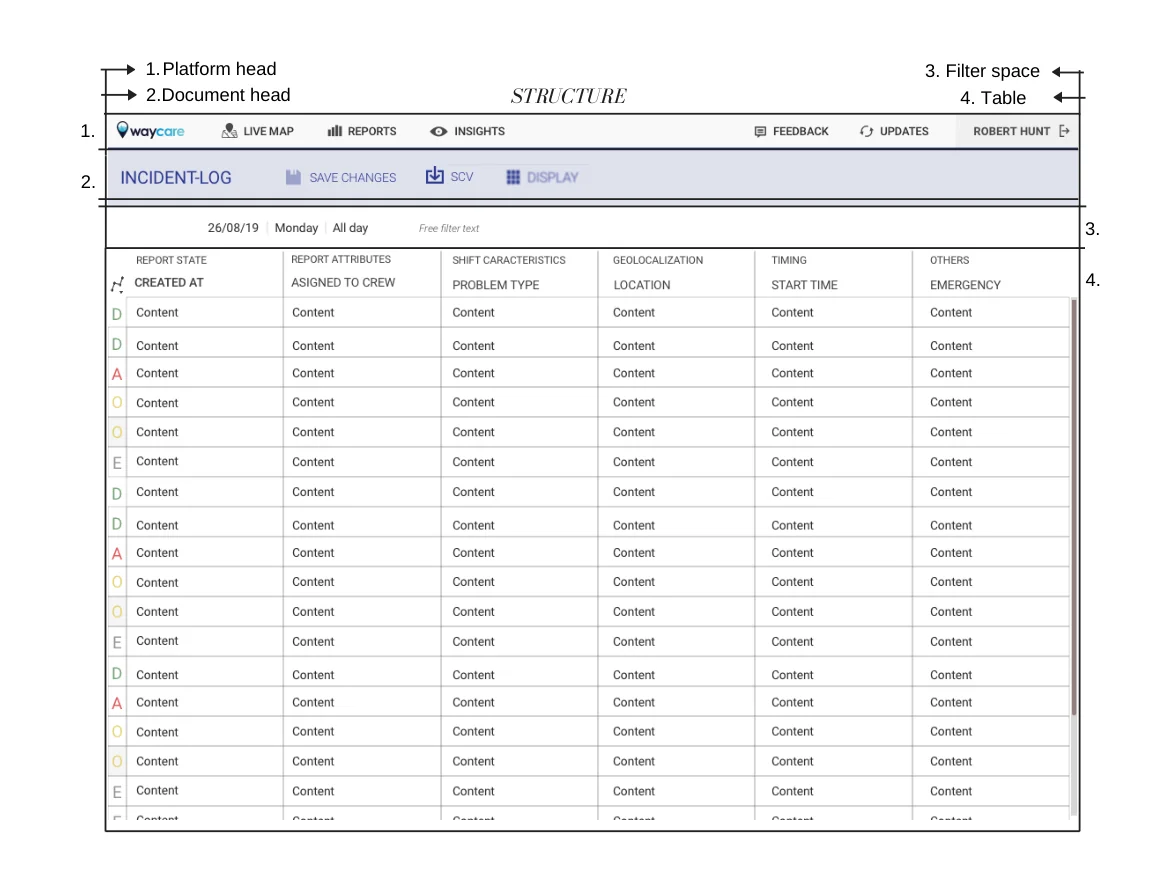
Four areas, one screen
I mapped the workflow around the table, from opening a day's log to saving a change, and divided the screen into four areas: platform header, document header, filter space and table. Everything else lives in one of them.
Columns in groups, a view that saves
The columns are divided into named groups (report status, report attributes, shift characteristics, geolocation, times and others), so the reader sees one topic at a time. A view panel lets you choose which groups to show and keep that workspace for next time.
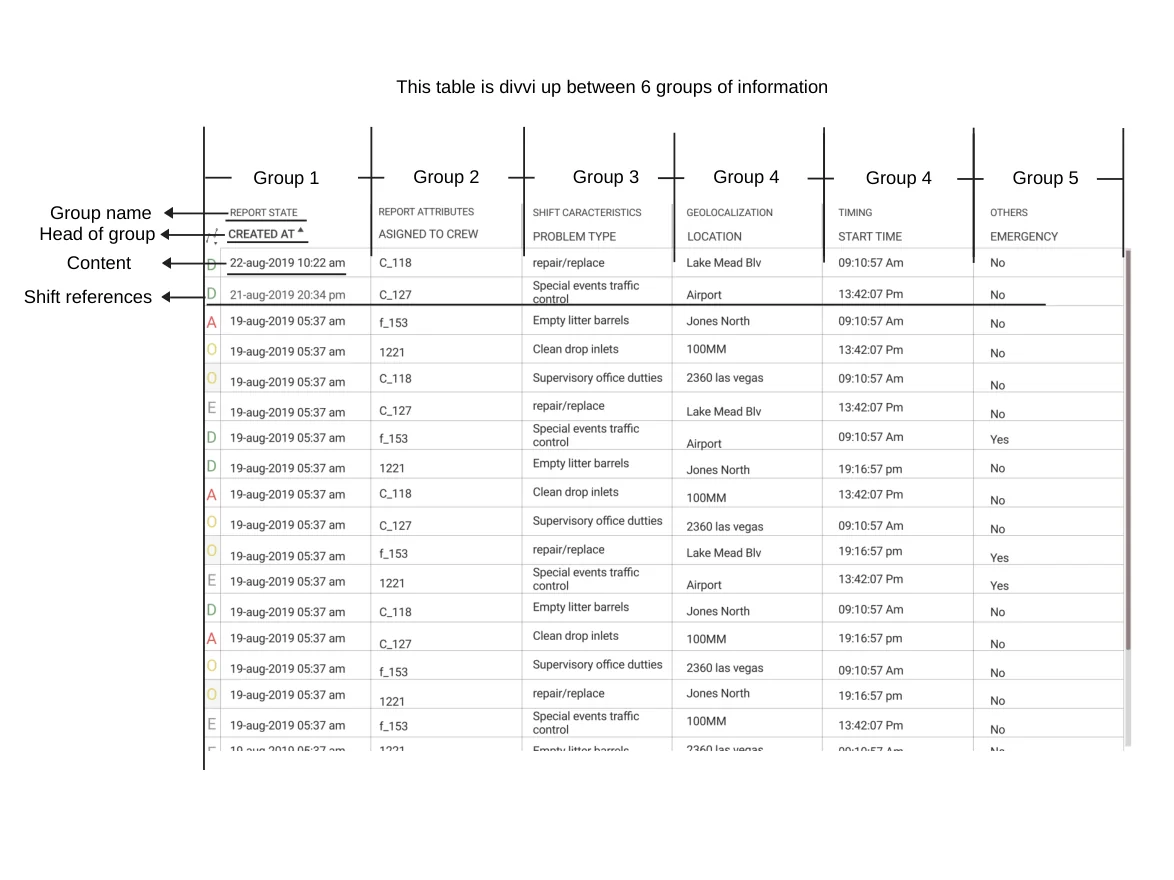
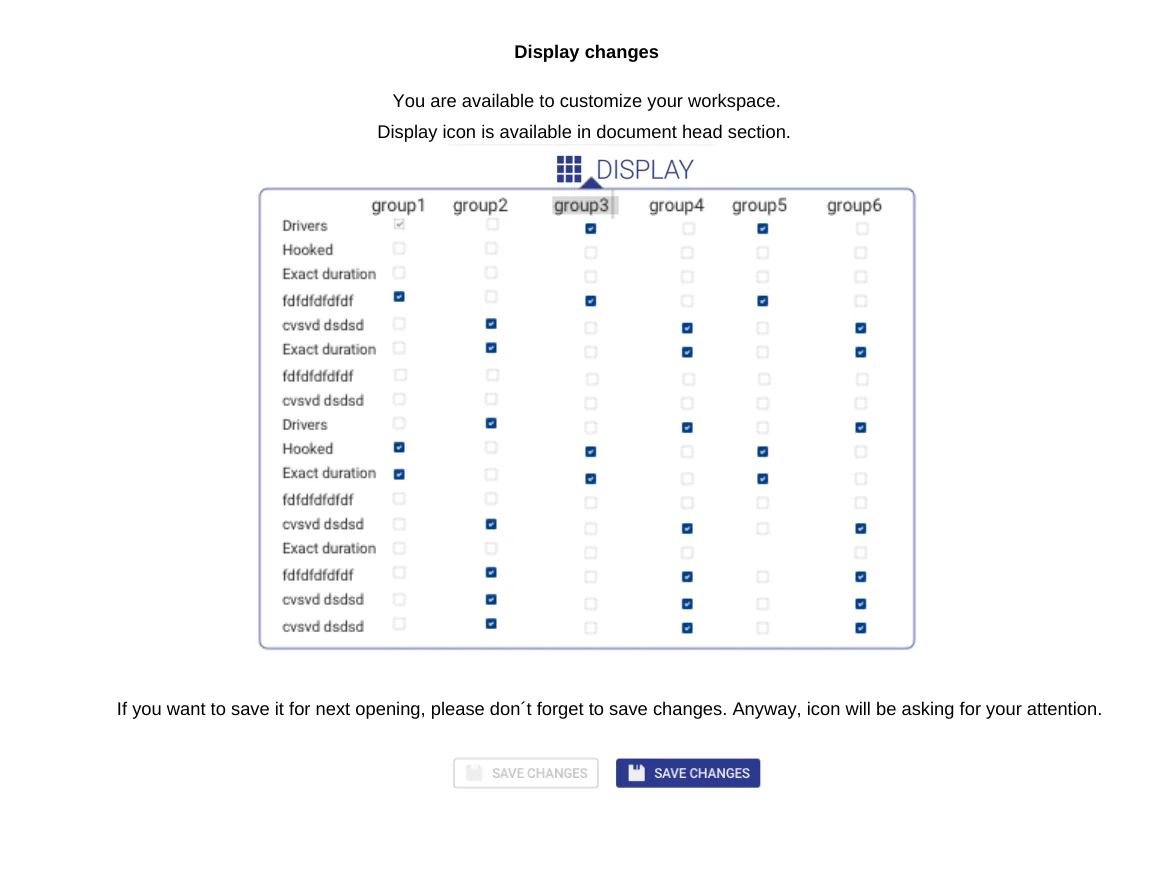
Swipe sideways or use the arrows. Tap a screenshot to enlarge it.
Filters that behave like chips
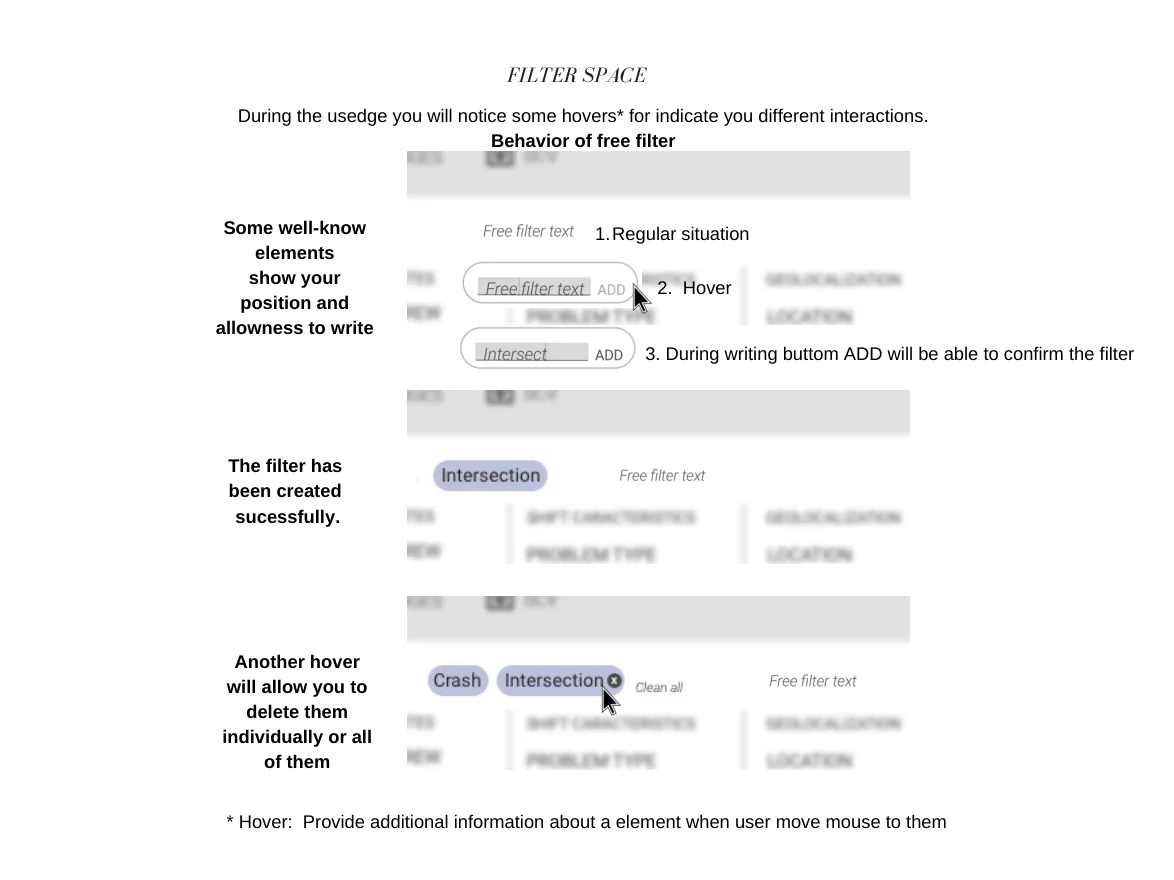
Free-text filters become chips once confirmed. On hover, each element explains itself, and chips can be deleted one at a time or all together. The filter space stays calm until it is needed.
The component with the most iterations
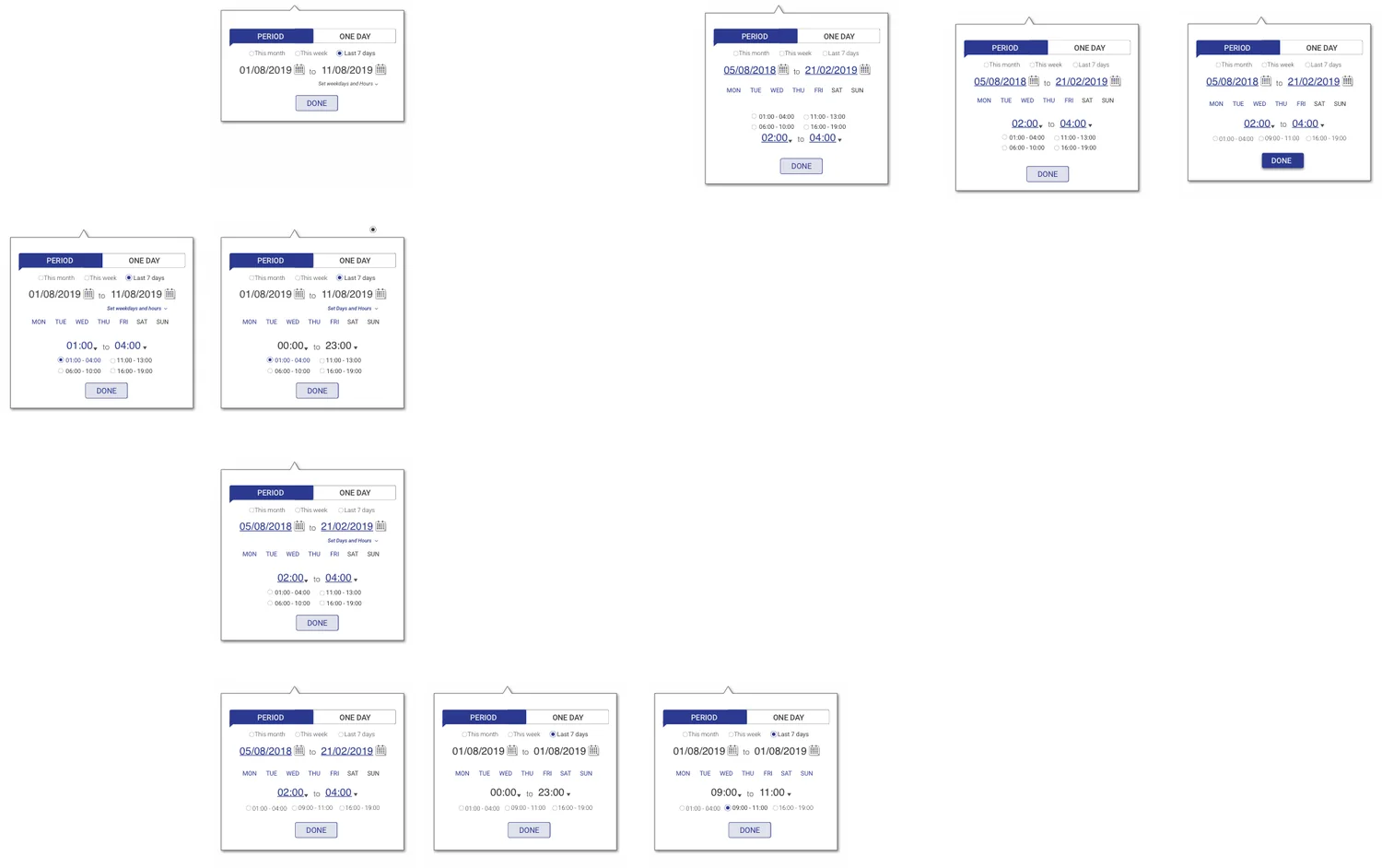
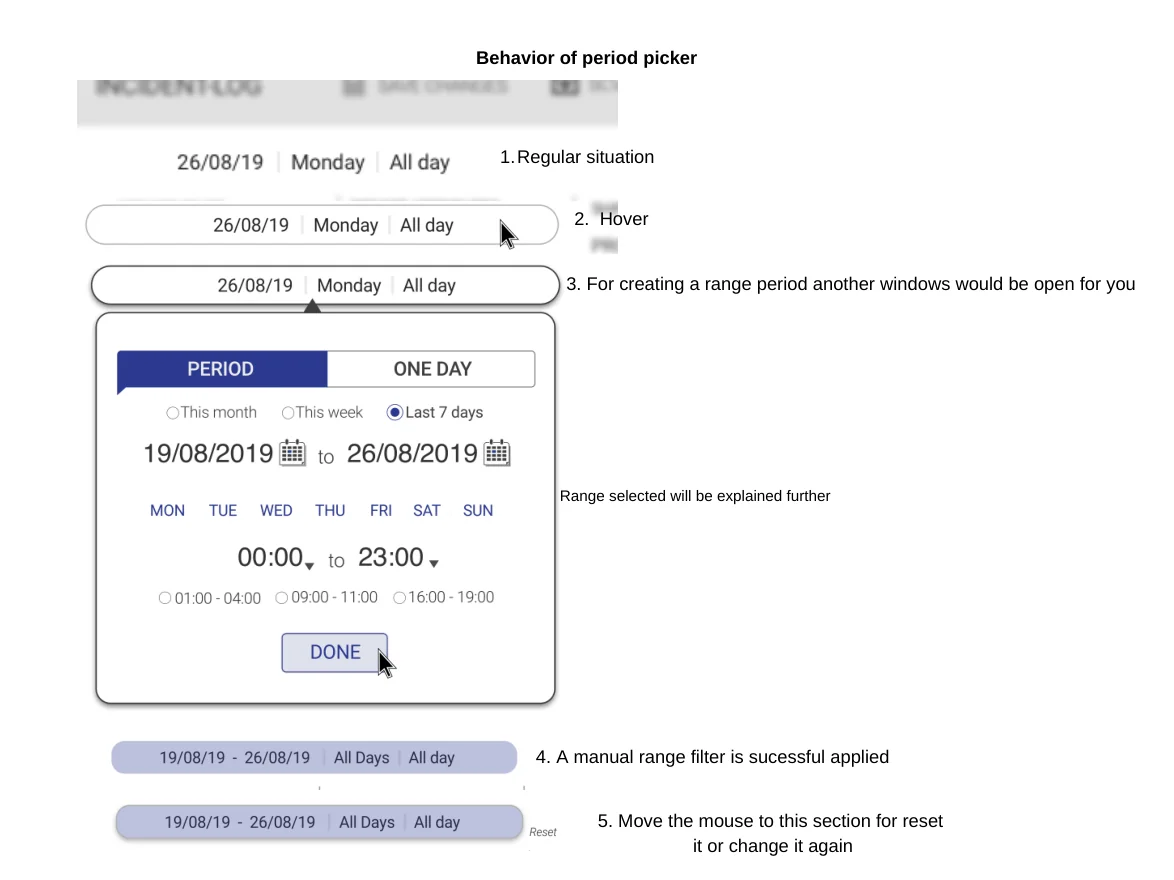
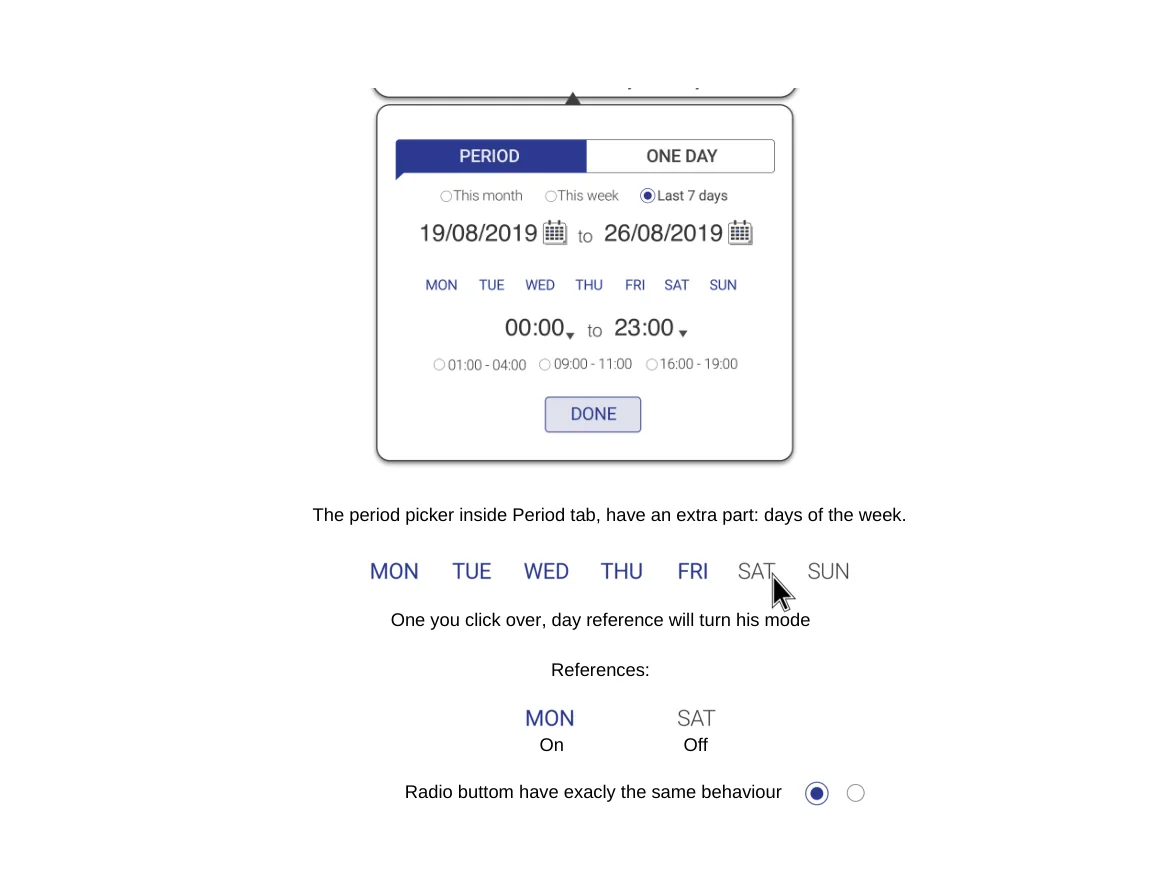
Time is the first filter almost everyone reaches for, so the period picker was specified screen by screen. It has two modes: Period (a date range with shortcuts, days of the week and hours) and One day (one day and an hour range). Chosen values turn blue, unchosen ones stay calm, and the applied range collapses into a chip that resets on hover.
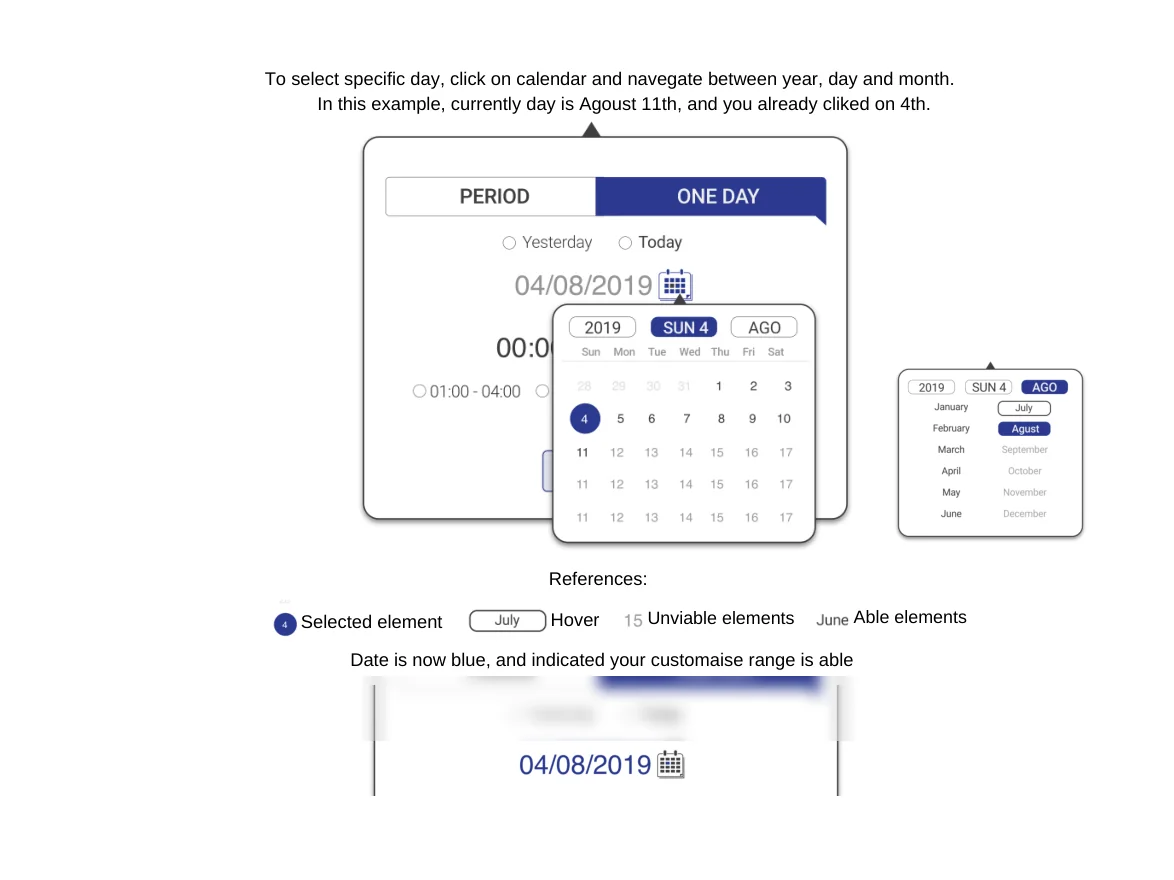
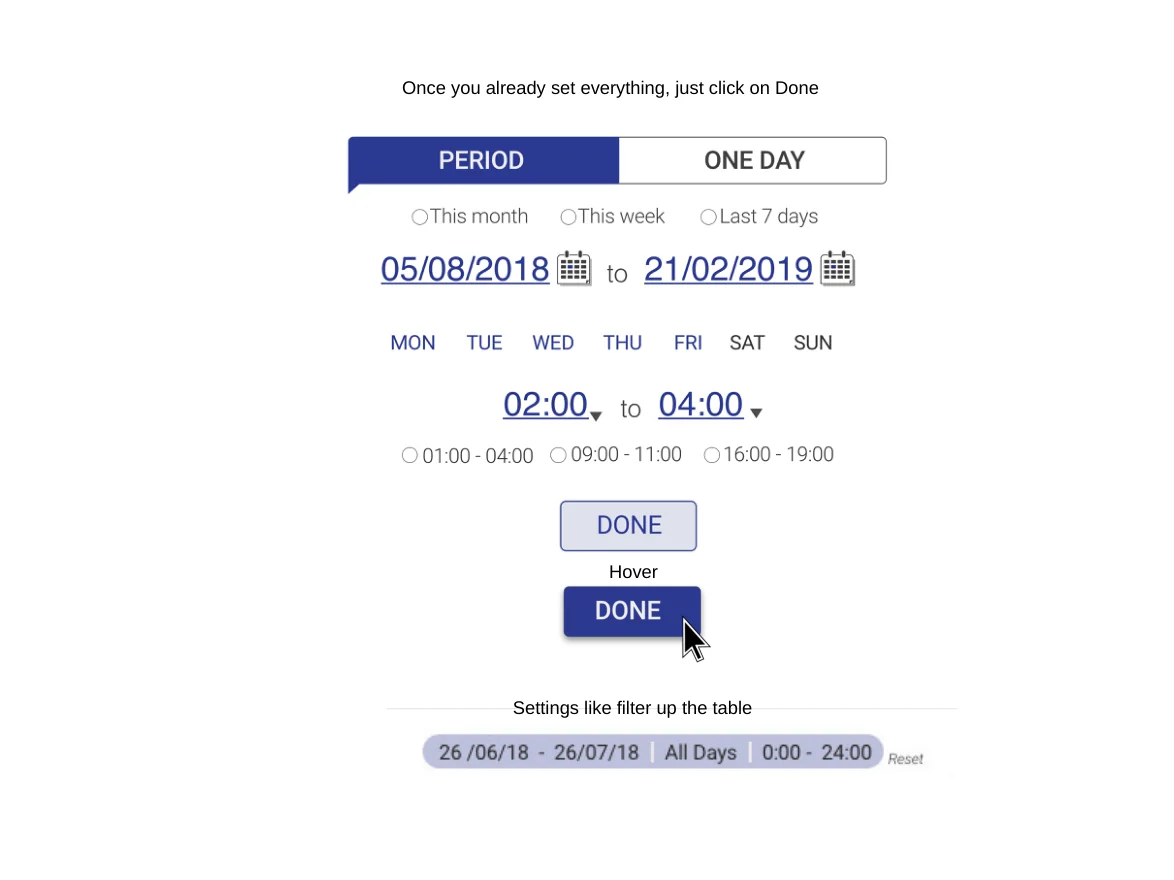
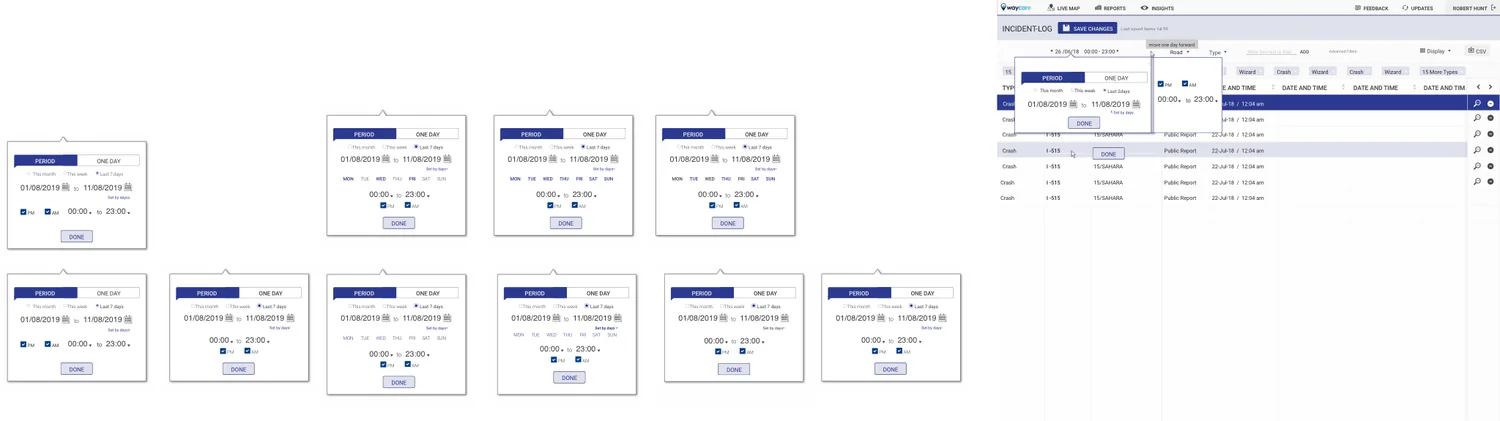
Swipe sideways or use the arrows. Tap a screenshot to enlarge it.
Orientation at a glance, actions on hover
A one-letter status at the start of each row (in progress, done, needs attention, paused, deleted) gives quick orientation; sorting and filters appear on hover. Each shift has a toolset: open shift, download, open attachment, mark as, changes and delete.
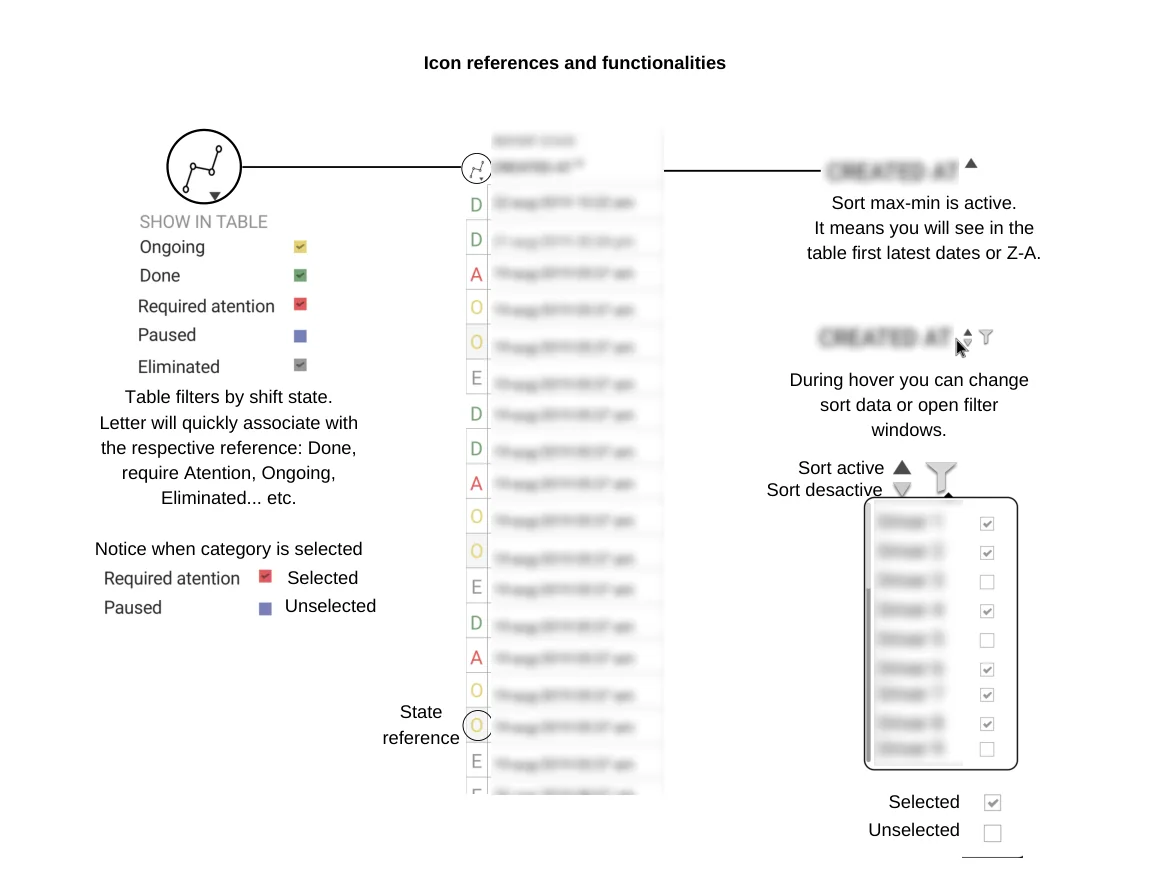
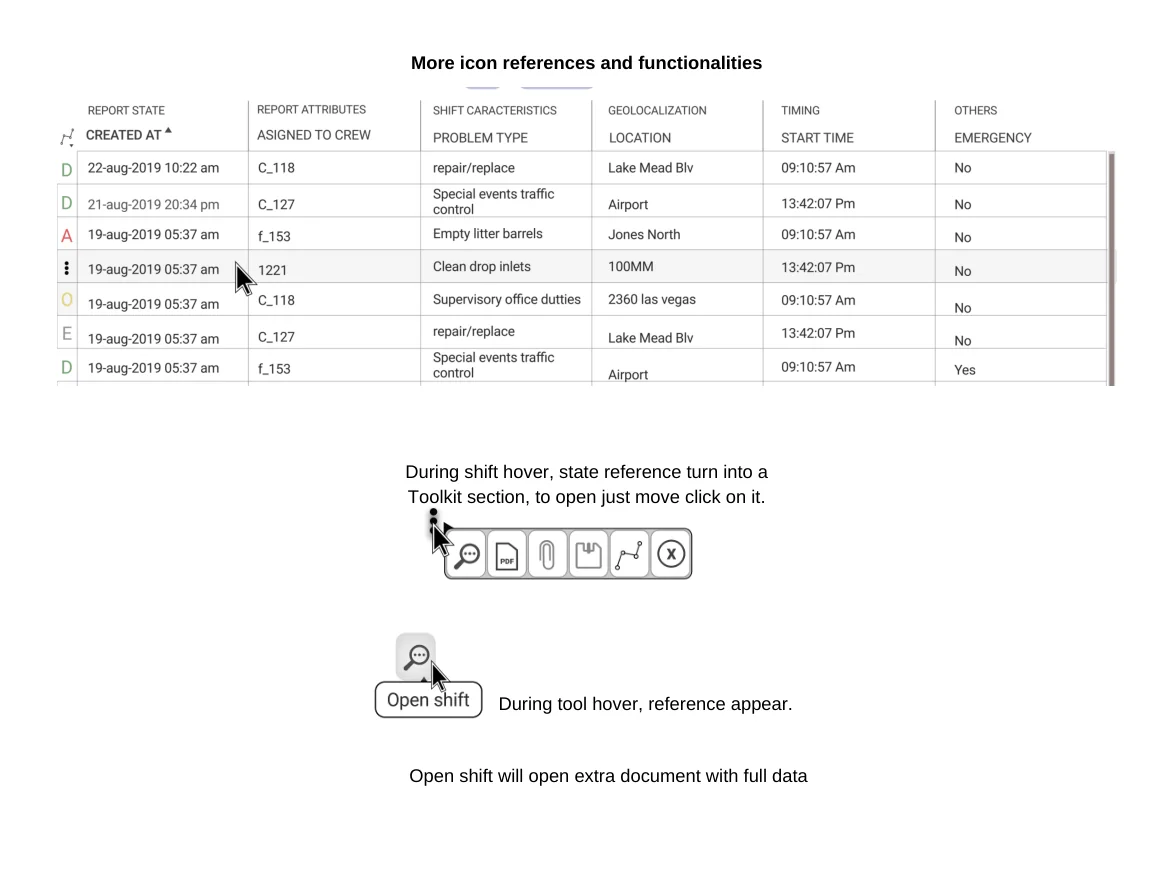
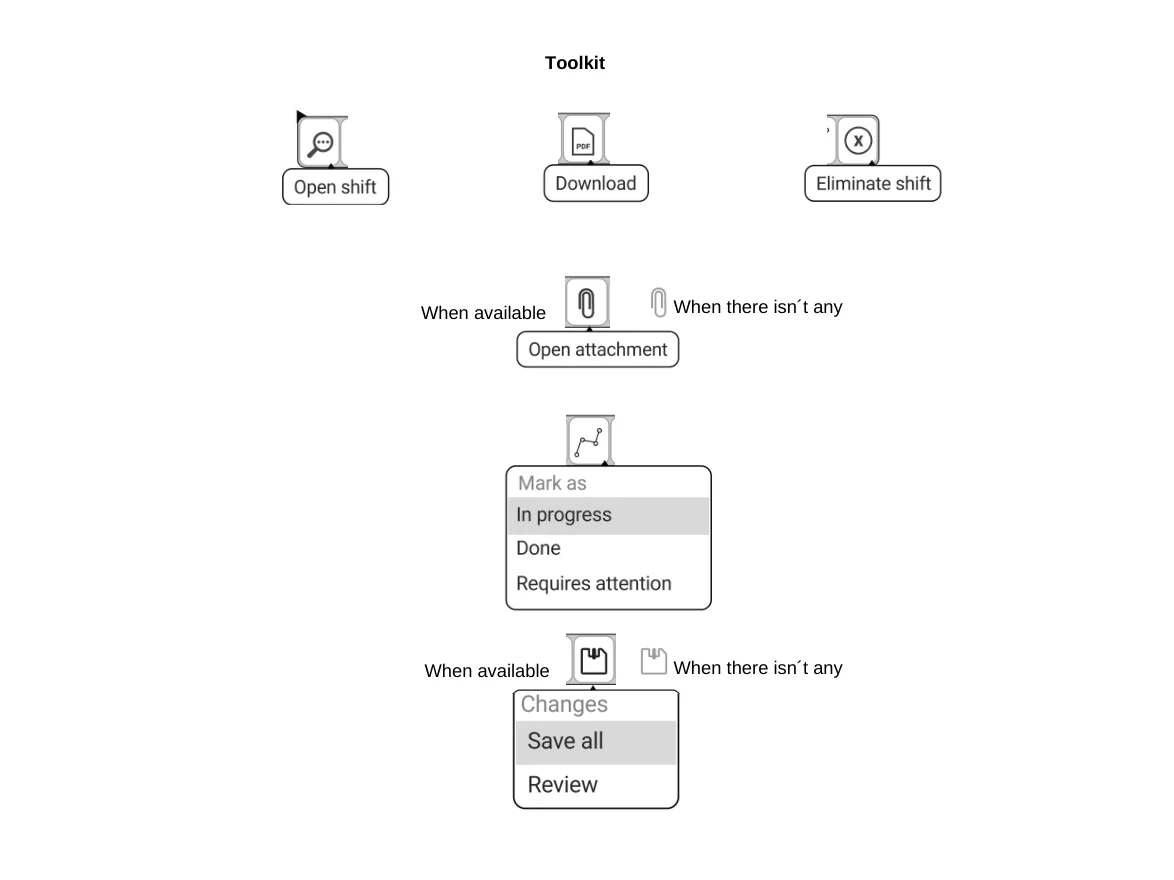
Swipe sideways or use the arrows. Tap a screenshot to enlarge it.
Expand, edit in place, save the history
A double click expands a shift to its full record; another double click on a value edits it. Edited fields carry a small mark with their history, and a dialog asks whether to save now or review first. The view icon reminds you to save the workspace.
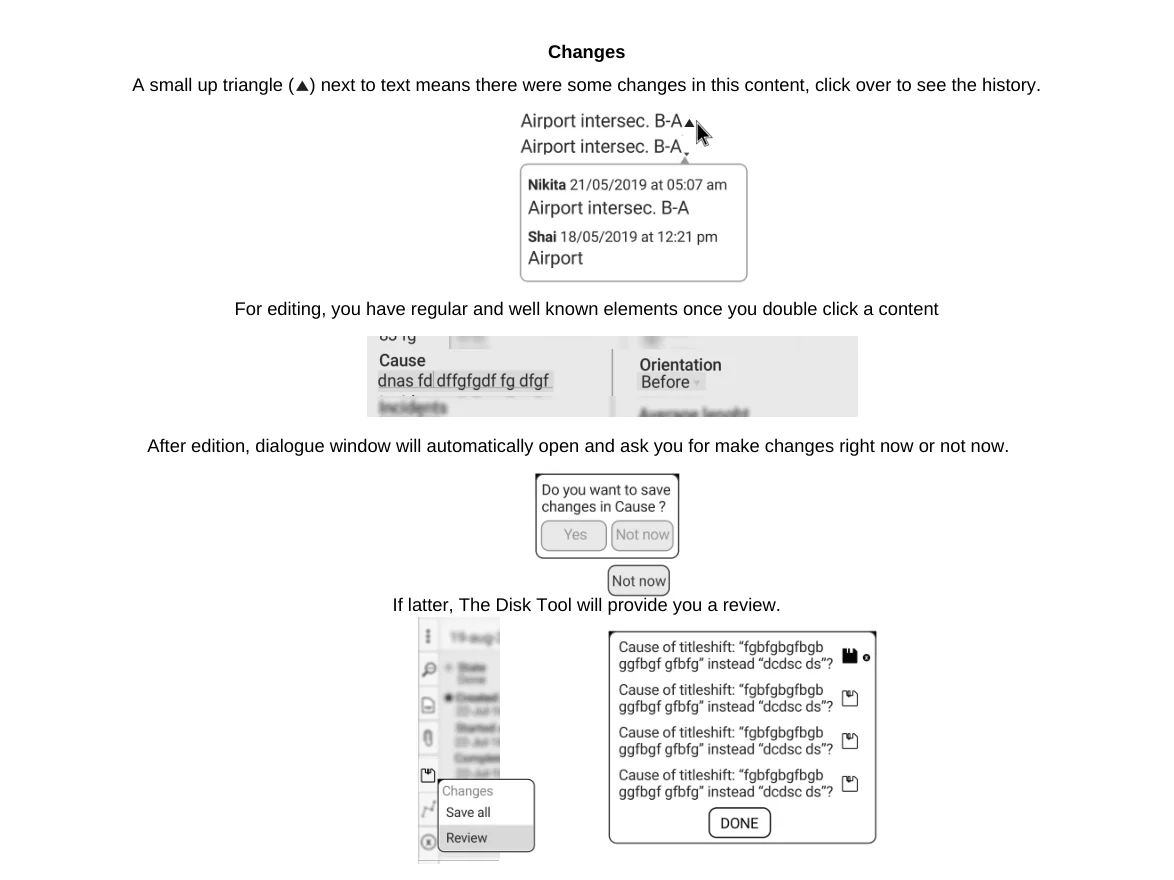
Specification, symbols and pixel-perfect interface
Every behavior (normal, hover, chosen, unchosen, empty and saved) is documented in a 16-page interaction specification, so engineering could build without guessing. Reusable Sketch symbols for radios, checkboxes, tabs and picker states kept the screens consistent, and the platform's icon set was redrawn pixel-perfect in Illustrator.
Also at Waycare: the customer Help Center
Alongside the table I designed the customer Help Center on Zendesk: the user flow from sign-in to request, the home page with its three entry points (product documentation, FAQ and release notes) and the identity of the section.
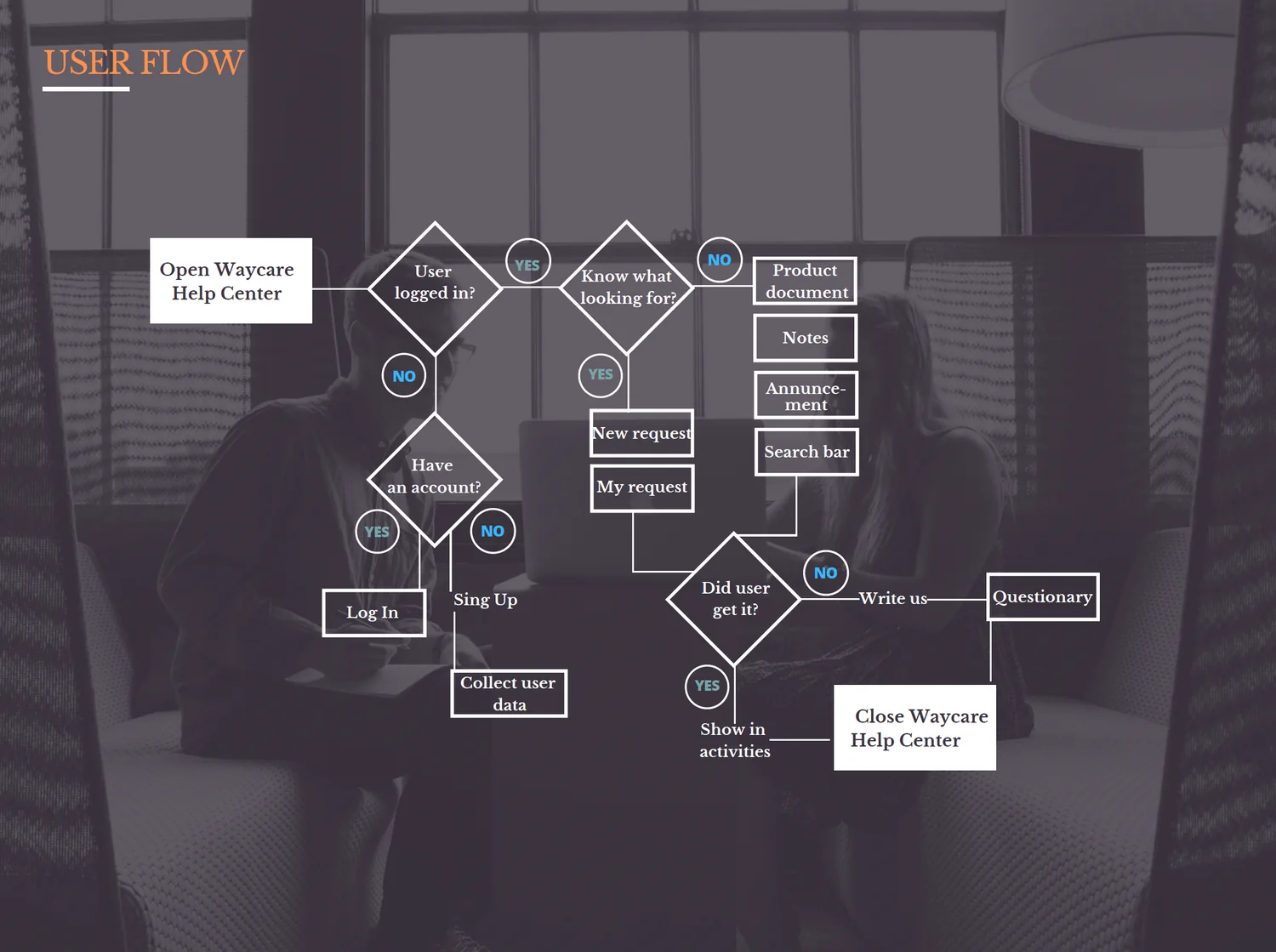
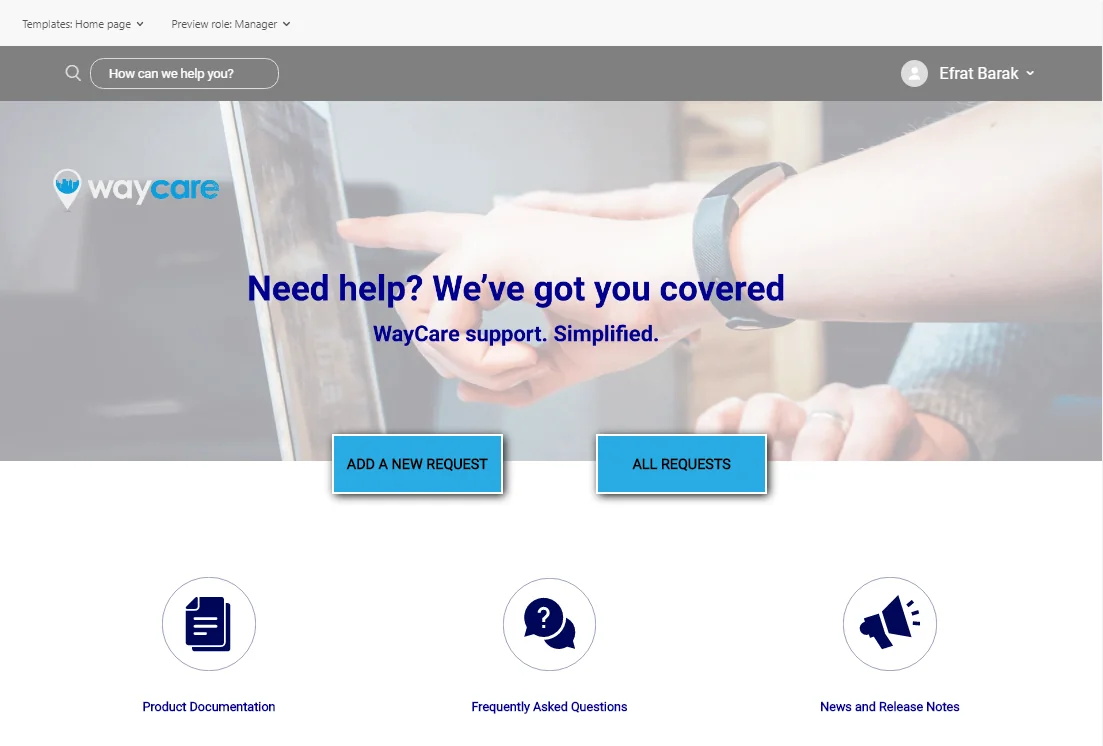
Swipe sideways or use the arrows. Tap a screenshot to enlarge it.
What I took away
It was my first UX/UI experience at a startup, in the second most important technology hub in the world after Silicon Valley. An unforgettable experience that taught me methodology and work discipline.